
Run the waitlist and seat walk-ins
Add a walk-in to the waitlist with a quoted wait, tell them their table is ready, give them a table, take them off the list, and seat walk-ins straight away.
The waitlist sits at the top of the reservation list on the Service Dashboard, in a bar labelled Waitlist with a count. Click the bar to open or close it. On a phone, tap More › Waitlist.
A waitlist guest has a wait type: Walk-in (they're here now, with a quoted wait in minutes) or Reserve Time (they want a particular time if one opens up).
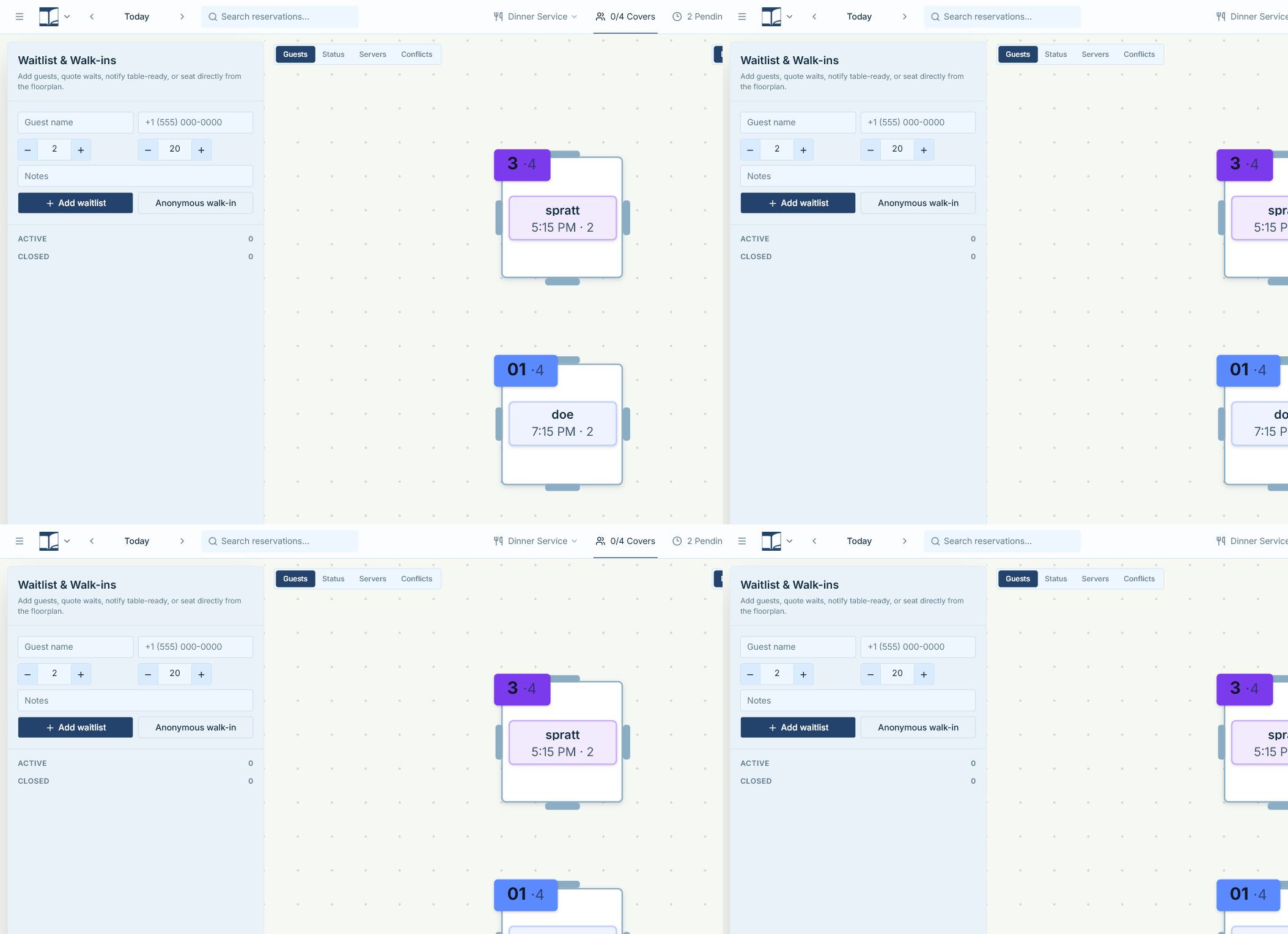
Add guests to the waitlist
Add a guest to the waitlist
A guest is waiting for a table, or wants a time that's full.
- 1Click the clock icon next to the Reservations heading at the top of the list (Add to waitlist). (Or, in New Reservation, click the clock icon beside the title.)
- 2Type the phone number in Phone lookup and pick the guest, or type First name and Last name.
- 3Choose a Wait type: Walk-in or Reserve Time.For Walk-in, set Estimated wait in minutes (1 to 240, default 20). For Reserve Time, set the time they'd like.
- 4Set Covers, and add any notes or allergies.
- 5Click Add to waitlist.
The guest appears in the Waitlist block with their quoted wait, marked Waiting.
- First name, last name and phone are required.
- Adding to the waitlist needs a connection.
If this doesn't work: If the button is grey, the service may be closed, or the time you chose has already passed.
Look after the waitlist
Change a guest's quoted wait time
Update the wait you quoted, for example from 20 to 30 minutes.
- 1Find the guest's card in the Waitlist block.
- 2Change the number in Estimated wait.
- 3Click away from the box to save.
Tell a waitlist guest their table is ready
Send the "your table is ready" text or email.
- 1Give the guest a table first (see Give a waitlist guest a table).
- 2Click the speech-bubble icon on their card.
- 3Choose Table ready and click Send.
- Giving a guest a table doesn't text them by itself; send Table ready when you're ready for them.
- If they haven't agreed to texts, the message box can show a QR code (Show SMS consent QR) for them to scan.
Give a waitlist guest a table
A table opened up for someone on the waitlist.
- 1On the guest's card, click Give a table (Walk-in) or Confirm Availability (Reserve Time).
- 2Click the table(s) on the floorplan.
- 3Click Done.
The guest becomes a reservation on that table and their booking opens. Seat them with Seat Now when they sit down.
- To back out before choosing, click the same button again (it now reads Cancel).
Seat a guest from the waitlist
Seat a waiting guest at their table.
- 1Give them a table (Give a table, pick the table, Done).
- 2Click Seat Now in their booking, or the green chair icon on their card.
Take a guest off the waitlist
They left, or found a table elsewhere.
- 1Click Leave on their card in the Waitlist block.
They're removed and it counts as a cancellation.
See online waitlist requests
Guests who asked online for a time that was full show up in the Waitlist too.
- 1Open the Waitlist block and look for cards marked Online request.
- Hostbook watches for a table and books them if one opens up. You can only remove these with Leave.
Walk-ins
Seat a walk-in straight away
A party walks in and there's a free table.
- 1On the floorplan, click the free table to open its menu.
- 2Click Seat walk-in.
- 3Tap the party size.
The table shows the walk-in party as seated.
- For a big party, click the link icon beside Seat walk-in first and pick several tables (see Floorplan).
- You can also click an empty slot on the Reservation Book and choose Seat walk-in.
- There's no walk-in button on the reservation list; use the floorplan, the Reservation Book, or the waitlist.
Remove a walk-in seated by mistake
Undo a walk-in on the wrong table.
- 1Open the walk-in's booking (click its card).
- 2Click Remove Walk-in at the bottom.
- Walk-in seats can't be undone with the Undo button.
Not available yet
Things staff ask for that Hostbook doesn't do yet, and what to do instead. Want one? Open Help › Support Chat and click Send a suggestion.
- Edit a waitlist guest's name, party size or notes
- Waitlist entries have no Edit button; only the quoted wait can change. Take them off with Leave and add them again.
- Text the guest automatically when a table is given
- Giving a waitlist guest a table doesn't send anything. Send Table ready from their card.