
Plan the night in the Reservation Book
Read the timeline, create a booking at a table and time, book across several tables, drag a booking to a new time or table, change dining time, and filter by room or conflicts.
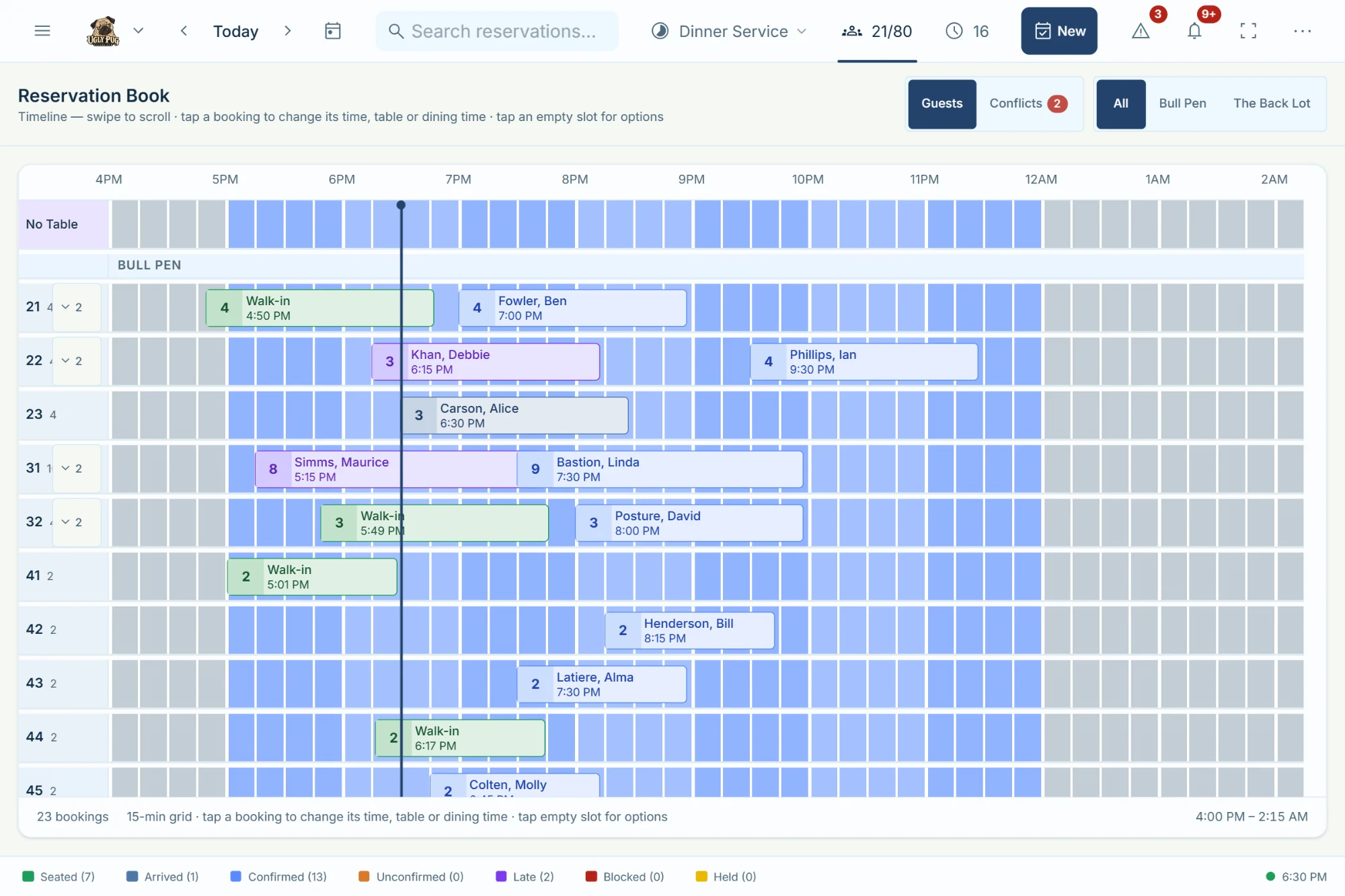
The Reservation Book is a timeline: one row per table (grouped by room), time across the top in 15-minute steps, and each booking as a block. The first row, No Table, holds bookings without a table.
It uses the date and service period in the header. A vertical line marks now (today only). Past days are view only.
Read and move around the book
Open the Reservation Book
Get to the timeline.
- 1Open the Reservation Book: on a computer, main menu (three-line button at the far left of the header) › Reservation Book; on a phone or tablet tap Book in the bottom bar.
The book opens on the date and service in the header.
Read a booking block
What the blocks, icons and colours mean.
- 1Each block shows the guest (Last, First), the time and the party size, and stretches for the dining time.
- 2A padlock means the guest is locked to the table. A link icon and dashed lines join a party spread over several tables. A warning triangle means the block was moved off its table by the active floorplan.
- 3Click a colour in the legend at the bottom (or the eye icon Legend on a phone) to see what it means.
Scroll to earlier or later times
See the start or end of the service.
- 1On a computer, scroll sideways with the mouse wheel or trackpad.
- 2On a phone or tablet, swipe, or tap Earlier / Later above the grid.
Open a booking from the book
See and change its details.
- 1Click or tap the booking block.
The reservation details open on the right.
See stacked bookings on separate lines
When several bookings share a table row, spread them out.
- 1On the table's name at the left, click the small arrow with a number.
- 2Click it again to put them back on one line.
Book and seat from the book
Make a reservation at a time and table
Start a booking already set to the table and time you click.
- 1Open the Reservation Book: on a computer, main menu (three-line button at the far left of the header) › Reservation Book; on a phone or tablet tap Book in the bottom bar.
- 2Click an empty spot on the table's row at the time you want.
- 3In the small menu (table · time), choose Add reservation.
- 4Fill in the guest and party size, and click Create.
- Add reservation is greyed out if the table isn't free then. Past times can't be booked here.
Book one party across several tables from the Reservation Book
Put a big party on two or more tables from the timeline.
- 1Click an empty spot on one of the tables at the time you want.
- 2In the small menu, tap the link icon beside Add reservation (Link tables for reservation).
- 3Tap the other tables' rows. Free tables show a dashed outline; tap a selected one again to remove it.
- 4In the bar at the bottom (N tables selected / N seats), tap Done.
- 5Pick the Party size. The form opens with all the tables; finish it and click Create.
- You can do the same from a table's menu on the floorplan, or in the booking form.
Seat a walk-in from the Reservation Book
Seat someone who just walked in at a table on the timeline.
- 1Click an empty spot on the table's row.
- 2Choose Seat walk-in and pick the party size.
- 3For several tables, tap the link icon beside it (Link tables for walk-in), tap the tables, tap Done, then pick the size.
Release a hold or block from the book
Make a held or blocked table bookable again.
- 1Click inside the held (yellow) or blocked (red dashed) period on the row.
- 2Choose Release hold or Release block. Enter a PIN if asked.
Change times, tables and dining time
Drag a booking to a new time or table
On a computer with a mouse, move a booking in one go.
- 1Press on the booking block and drag it left or right to change the time (it snaps to 15 minutes), and/or up or down onto another table.
- 2Let go. Enter a PIN if asked.
- 3If the table is taken, choose what to do: Link tables, Swap tables, Stack anyway or Cancel.
- You can't drag completed or table-locked bookings, bookings on past dates, or anything while offline.
- A party on several tables can't be dragged to another table; open it and use Change or link tables.
Change a booking's time or table on a phone or tablet
In the Reservation Book, dragging is off on touch screens. (On the floorplan you can long-press a card to drag it.)
- 1Tap the booking.
- 2In its details, change the time, table or dining time.
Make a booking longer or shorter in the book
Change how long the table is held for.
- 1On a computer, hover the block and drag the thin handle on its right edge left or right (15-minute steps). Enter a PIN if asked.
- 2On a phone or tablet, open the booking and tap the pencil beside Dining time, then use the stepper.
Hostbook may offer Save to make this the guest's usual time for that party size.
Filter the book
Show only one room
Focus the book on one dining room.
- 1Click All or a room name in the book's header (phone or tablet: the Book room dropdown).
- Only shows when the venue has two or more rooms.
Show only tables with conflicts
Find overlaps, tight turns and wrong-size tables.
- 1Switch Guests to Conflicts in the book's header (phone or tablet: Floor overlay dropdown).
Only tables with a problem stay. Red means overlap, orange a tight turn, cyan the wrong party size, violet late.
Show only one kind of booking
For example only seated parties, or grey out a colour.
- 1Click an item in the legend at the bottom, such as Seated (4) (phone or tablet: eye icon Legend).
- 2Choose Seated reservations only, or Neutral color on book to grey that colour out.
What things mean
- No Table row
Bookings that don't have a table yet.
- Yellow block
The table is held.
- Red dashed block
The table is blocked.
- Dashed lines between blocks
One party linked across several tables.
- Faded block
Completed.
- Dashed border
Saved on this device only; not synced yet.
Not available yet
Things staff ask for that Hostbook doesn't do yet, and what to do instead. Want one? Open Help › Support Chat and click Send a suggestion.
- Zoom the Reservation Book
- The timeline has a fixed 15-minute grid. Scroll instead (or Earlier / Later on a phone). To zoom the floorplan, see Floorplan › Save the zoom level for a room.
- Jump to now
- There's no jump-to-now button; scroll to the vertical now line.
- Drag bookings on a phone or tablet
- Tap the booking and change it in its details.
- Filter the book by status, server or party size
- Use the room filter, Conflicts, or the legend's …only options.