
Run the room from the floorplan
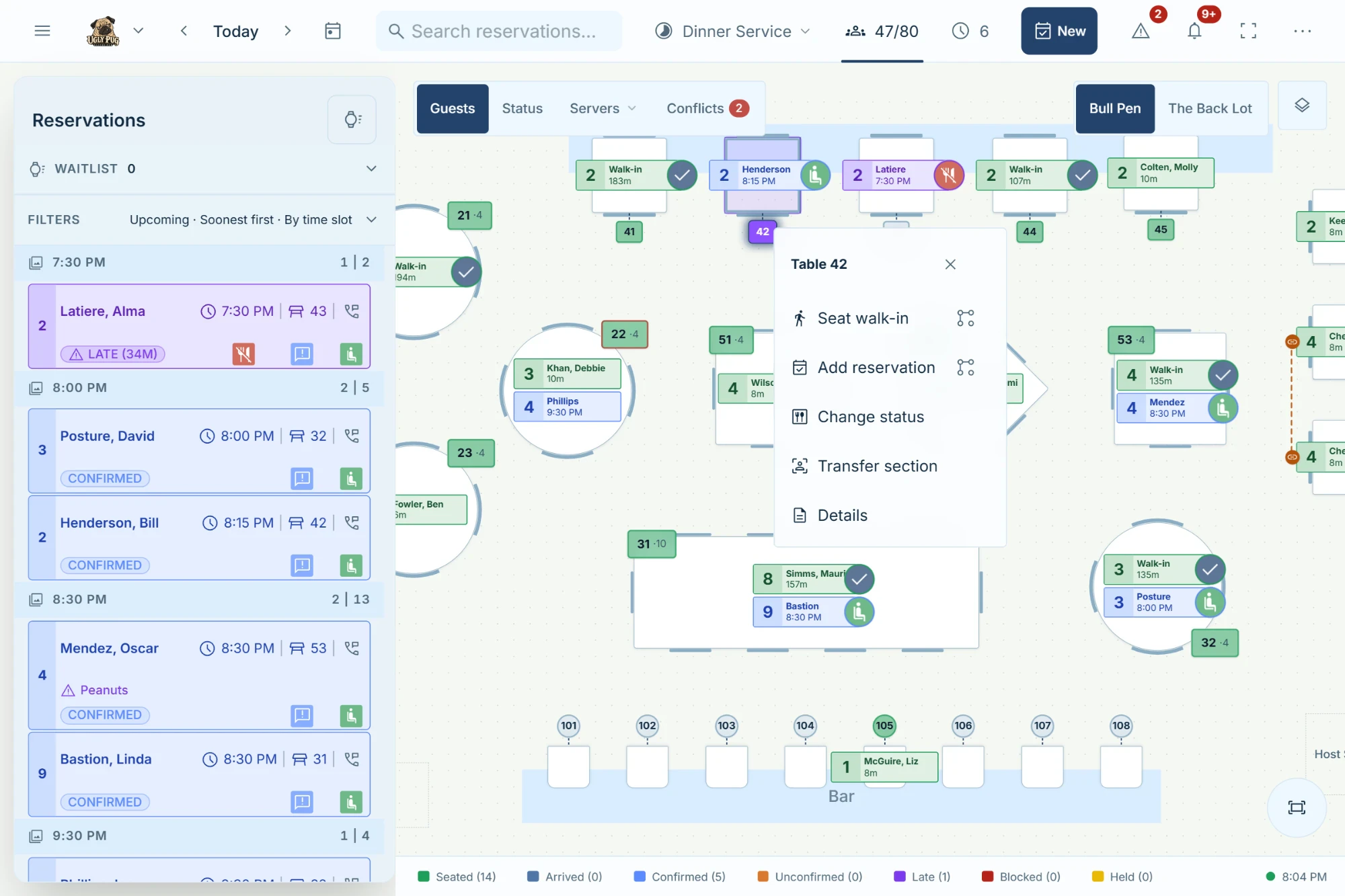
Seat walk-ins, book and link tables, move parties, hold or block tables, mark courses, zoom and save the view, and manage server sections on the live floor.
The live floorplan is the right half of the Service Dashboard on a computer. On a tablet, tap Floor in the bottom bar to see the same map. On a phone, Floor shows a list of tables grouped by room instead of a map, and each table's menu opens under its row.
Almost everything starts by clicking (or tapping) a table: that opens the table's menu. Long-press or right-click a table to open its details drawer instead. Most floor changes need a connection, and a past date is view only.
Move around the floor and zoom
Switch to another room
Venues with more than one room (patio, bar, upstairs) show one room at a time.
- 1On a computer or tablet, click the room's name at the top-right of the floor.
- 2Or, on a touch screen, swipe left or right on empty floor once you can't pan any further.
- 3On a phone, open the room dropdown in the Floor header and pick a room or All rooms.
The floor shows that room at its 100% zoom.
- While dragging a party, hover over a room name to switch rooms and drop them there.
Pan around the floor
Move the plan when part of the room is off screen.
- 1Drag on empty floor with the mouse or one finger.
- 2Or scroll with a trackpad or mouse wheel to move up, down and sideways.
- Dragging on a table or card doesn't pan; start on empty floor.
Zoom the floorplan in or out
The zoom control is the small round button at the bottom-right of the floor.
- 1Hover over the round button at the bottom-right of the floor.On a touch screen, tap it once. It opens into +, the current %, and −.
- 2Click + to zoom in or − to zoom out.
- 3Or hold Ctrl (⌘ on a Mac) and scroll the mouse wheel to zoom where the pointer is, or pinch with two fingers.
Set an exact zoom percentage
Type the zoom you want instead of clicking + and − repeatedly.
- 1Hover over (or tap) the round zoom button at the bottom-right of the floor.
- 2Click the percentage number (for example 85%).
- 3In the Zoom box that opens, type a number or use its arrows (steps of 5).
Simplify reservation cards when you zoom out
Keep cards readable when the whole room is on screen without changing your saved card size in Device settings.
- 1Hover over (or tap) the round zoom button at the bottom-right of the floor.
- 2Click the percentage number to open the Zoom panel.
- 3Under Card detail when zoomed out, use the two sliders (or read the labels beside Compact cards and Party size only).
- 4Drag the Compact cards control to choose when cards drop to the shorter layout (for example Below 100%).
- 5Drag the Party size only control to show only the party number on very small cards, or set it to Off.
- Out of the box, Compact cards is Below 100% and Party size only is Off.
- The setting is saved on this device, and a venue device template carries it to other devices. Every room switches at the same table size, even when that room's 100% zoom differs.
Save the zoom level for a room
Make the room open at the zoom and position you like every time, instead of the automatic fit.
- 1Zoom and pan until the room looks the way you want.
- 2Hover over (or tap) the round zoom button at the bottom-right of the floor.
- 3Click the percentage number.
- 4Click Save current view as 100% for this room.
The number now reads 100%. Whenever you open this room, switch back to it, or press the fit button, the floor returns to this view.
- It's saved for this room on this device only. Do it once on each host-stand device, and once per room.
- To undo it, click the percentage again and choose Reset to automatic zoom for this room. The room goes back to fitting the screen.
Reset the floor to its normal zoom
Get back to the room's 100% view after zooming around.
- 1Click the fit-screen icon at the bottom of the round zoom control (Reset zoom to 100%).On a touch screen tap twice: the first tap opens the control.
- If the room is bigger than the screen, this resets the zoom but may not re-centre it. Switching to another room and back always re-centres.
Make the floor zoom to the party you select
Have the floor frame a party's tables when you click their booking or a conflict.
- 1Open Device settings: on a computer click ⋯ at the far right of the header, then Device settings; on a tablet tap More › Device settings.
- 2Under Floorplan focus, turn on Zoom to selected table.
- 3Set Zoom level (%) if you want it closer.At 100% it only pans to the table without zooming.
- Works in Guests and Conflicts modes, on this device only. It isn't offered on phones.
Make reservation cards or table numbers bigger or smaller
Change how much text sits on each table on this device.
- 1Open Device settings (computer: ⋯ › Device settings; tablet: More › Device settings).
- 2Under Floorplan cards & labels, choose Reservation card layout: Large (name and time) or Compact (time only, so more cards fit).
- 3Change Reservation cards % or Table numbers % (50 to 200).
- 4To go back, click Reset cards to default (100%) or Reset table numbers to default (100%).
- Not available on phones.
Open a table
See everything about a table (table details)
The details drawer shows the table's server, status, current guest, turn progress, and the bookings before and after.
- 1Long-press the table for about half a second, or right-click it.
- 2Or open the table's menu and click Details.
A drawer opens on the right titled Table and its number, with Server, Table status, Quick status buttons, Current guest, Turn progress, Next booking and Previous bookings.
- The bookings listed here can't be clicked; open a booking from the list or its card.
Deal with a table marked "In use – Dinner"
You'll see this when you're looking at an earlier service and a party from a later service is already sitting there.
- 1Tap the table.
- 2Click Switch to Dinner (or whichever service it names).
The floor switches to that service so you can manage the party.
- Choosing All turns (see Choose how many reservation cards show) shows the whole day and hides this marker.
Seat and book from a table
Seat a walk-in at a table
Seat a party with no booking straight onto a free table.
- 1Click the table to open its menu.
- 2Click Seat walk-in.
- 3Under Party size, tap the number of guests.Sizes outside the table's range show in amber but still work. For a bigger party tap Other, type the size and tap Use.
You'll see Seated walk-in party of 4. and the table shows the party as seated.
- If you're looking at a different service from the one running now, Hostbook asks Switch to live service? Choose Seat walk-in and switch.
- If the table is held, choose Use table anyway to clear the hold. If the walk-in would overlap a booking, Hostbook warns Scheduling conflict; choose Seat anyway only if you're sure.
- You can't seat a walk-in on a blocked table, and walk-in seats can't be undone with the Undo button. To take one back, open its card and click Remove Walk-in.
- You can also seat a walk-in from the Waitlist or from an empty slot in the Reservation Book.
- Depending on your venue's PIN settings, Hostbook may ask you to pick your name and enter your PIN before the change saves.
Seat one walk-in party across several tables
Push two or more tables together for a big walk-in.
- 1Click one of the tables to open its menu.
- 2Click the link icon to the right of Seat walk-in (tooltip Multiple tables).The menu closes and a bar near the bottom of the floor counts tables and seats.
- 3Click each of the other tables.Picked tables are joined by a dashed line. Click one again to drop it.
- 4Click Done in the bar. The menu reopens titled with all the tables, for example Tables 4 + 5.
- 5Pick the party size.
The party is seated on all the tables as one walk-in.
- On a phone, tapping the link icon opens a Link tables grid. Tap the tables, then Done.
- Blocked tables can't be picked.
Add a reservation from a table
Book a guest onto a particular table, for example when a caller asks for the window table.
- 1Click the table to open its menu.
- 2Click Add reservation.
- 3Under Party size, tap the number of guests.
- 4Under Reservation time, tap a time. (Back returns to party size.)
- 5The new reservation form opens with the table, time and party size filled in. Add the guest's details and save.
The booking appears on that table at that time.
- Not offered on past dates or on a day with no service.
Seat a booked party at the table you choose (phone)
On a phone, start from the table: "put the Smiths on 12".
- 1On the Floor list, tap the table's row.
- 2Tap Seat a booking here.
- 3Pick the booking.Badges show Arrived, Late or Doesn't fit. Bookings locked to another table are greyed out.
- 4Tap Seat now, or Assign for 7:30 (or whatever time) to put them there for later.
- On a computer or tablet, drag the booking's card from the list onto the table instead (see Move a party to another table by dragging).
Seat a booked party with one click from its card
When Quick actions on cards is on, a booked party's card on the floor has a small green button.
- 1Find the party's card on its table (Guests mode).
- 2Click the round green button on the right edge of the card (Seat).
The party is seated. An Undo button shows at the bottom of the screen for 10 seconds.
- If the table is still occupied, choose Finish current table and seat guest, Seat anyway (share…) or Select another table.
- If the booking has no table yet, Hostbook asks you to pick tables, then Done.
Move, swap, link and unlink tables
Move a party to another table by dragging
The fastest way to move a party on a computer or tablet.
- 1Press and hold the party's card on its table for about half a second, until it lifts.
- 2Drag it onto the new table.A blue ring means fine; amber means there's a conflict or hold (Hostbook will ask); red means not allowed.
- 3Let go.
The party now shows on the new table.
- You can also drag a reservation straight from the list onto a table. With a mouse just drag it; on a touch screen long-press it first.
- To cancel a drag, press Esc, right-click, or let go over empty floor.
- Moves can't be undone with the Undo button; drag them back instead.
- Depending on your venue's PIN settings, Hostbook may ask you to pick your name and enter your PIN before the change saves.
If this doesn't work: If you see …is locked to their table. Unlock them in their details to move them., open the booking and turn off Lock to table first. Completed, cancelled and no-show cards can't be moved.
Move a party with Move guest
Move a party without dragging, or choose new tables on a phone.
- 1Click the party's booking (in the list or its card) to open it.
- 2Click Move guest (or Assign a table if it has no table yet).
- 3The floor shows Moving… with the party's name. Click the new table, or several tables.
- 4Click Done.
- The pick starts empty. If the party should keep its current table and add another, click the current table too.
- On a phone, a Move guest list opens showing each table as Free, Held, Seated now, Overlaps another booking or Blocked. Tap the tables, then Done.
Swap two parties' tables
Trade tables between two parties, for example to give a booth to the party who asked for one.
- 1Drag party A's card onto party B's table (or use Move guest and pick B's table).
- 2In the Table conflict box that opens, click Swap tables.
Both parties change tables in one step.
- There's no separate Swap button: the swap is offered when you move one party onto the other's table.
- Other choices in that box: Stack anyway (both share the table), Unseat conflicting reservation (click twice to confirm), Link tables (when the party doesn't fit) and Cancel.
- Swap tables only appears when party A is leaving all its tables and neither party is locked.
Add a table to a party that's already seated
The party grew, or wants more room.
- 1Open the party's booking.
- 2Click Move guest.
- 3Click every table the party should have, including the one they're on now (the pick starts empty).
- 4Click Done.
Unlink a party's extra tables
Give back the extra tables while the party keeps its main table.
- 1On the floorplan, press and hold the dashed line joining the party's tables for about half a second.
- 2In Unlink extra tables?, click Unlink.
The party keeps only its main table; the others are free.
- Or open the booking and click Unlink tables.
- On a phone, open the table's menu and tap Unlink tables · followed by the party's name, then Unlink.
- Not possible for parties locked to their tables.
Seat two parties at the same table
Share a big table, or seat a party at the bar table with another.
- 1Seat or drag the second party onto the table.
- 2When Hostbook warns the table is occupied, choose Seat anyway (share…) or, when moving, Stack anyway.
- Depending on your venue's PIN settings, Hostbook may ask you to pick your name and enter your PIN before the change saves.
Cancel a table pick or drag
Back out of picking tables, linking or dragging.
- 1Press Esc, right-click, click Cancel on the bar, or tap empty floor.
Table status, holds and blocks
Mark a table's course or payment (Appetizer, Main, Dessert, Billed, Paid)
Show the kitchen and floor where each table is in the meal.
- 1Click the table to open its menu, then click Change status. (In Status mode the status list opens straight away.)
- 2Click the status: Appetizer, Main course, Dessert, Billed or Paid.
The table's frame changes colour (easiest to see in Status mode).
- Course and payment statuses only work when a party is seated.
- The list and its order are set in Application Settings › Tags & statuses › Table statuses.
- You can also use the Quick status buttons in the table's details drawer.
Hold a table
Keep a table free, for example for a regular who's on the way or a VIP.
- 1Click the table to open its menu.
- 2Click Change status, then Held.
- 3Choose how long: Hold for this service, Hold until EOD (end of day), Hold until unheld, or Custom hold time.For a custom time, set From and Until, then click Apply hold.
The table shows as Held (purple). Staff are warned if they try to seat there, and online guests can't book it while it's held.
- You can't hold a table while a party is seated at it.
- A table has one hold at a time. If it already has one, Hostbook asks Replace the existing hold?
- The details drawer has the same choices under Quick status › Held.
- Depending on your venue's PIN settings, Hostbook may ask you to pick your name and enter your PIN before the change saves.
Release a hold
Make a held table available again.
- 1Click the held table to open its menu.
- 2Click Release hold.
- You can also click Release hold in the table's details drawer or in a held slot on the Reservation Book.
Seat someone at a held table anyway
Use a held table when you need it.
- 1Seat or drag the party onto the held table.
- 2In Table is held, click Use table anyway.
The party is seated and the hold is cleared.
- This may need a manager's PIN.
Use a table that an event is holding
Tables held for a special event show a ticket-style marker.
- 1Seat or drag the party onto the table.
- 2In Table is held for an event, click Release from event and use.
That one table leaves the event; the event keeps its other tables and seats.
Block a table
Take a table out of use, for example a wobbly table or a broken chair.
- 1Click the table to open its menu.
- 2Click Change status, then Blocked.
The table shows a dashed red outline and can't be booked, picked or given walk-ins until you release it.
- You can't block a table while a party is seated.
- To close a table or room for a whole season, use the floorplan schedule in Settings instead (see Settings and setup).
Unblock a table
Put a blocked table back into use.
- 1Click the blocked table to open its menu.
- 2Click Release block.
Clear a table when the party leaves (Finish)
Mark the seated party as finished so the table is free for the next party.
- 1Click the table to open its menu.
- 2Click Finish.
The party is marked Completed and the table is free. Undo shows at the bottom for 10 seconds.
- Shortcut: once most of the expected dining time has passed, a round blue check button appears on the party's card (Finish table for…). Click it.
- You can also open the booking and click Mark Completed.
Undo a seat, finish or status change
Clicked the wrong table or finished the wrong party?
- 1Click Undo in the bar at the bottom of the screen straight away.
- Undo lasts 10 seconds and only covers the last seat, unseat, finish or status change.
- Walk-in seats, moves, holds, blocks, unlinks and section changes can't be undone this way. Reverse them by hand (for example drag the party back, or release the hold).
If this doesn't work: If you see Reconnect to undo that change., you're offline. Undo once the connection is back.
Floor modes, legend and conflicts
Switch floor mode (Guests, Status, Servers, Conflicts)
The tabs at the top-left of the floor change what the tables show.
- 1Click a tab at the top-left of the floor: Guests, Status, Servers or Conflicts. On a phone, use the mode dropdown in the Floor header.
- Guests shows reservation cards on each table, seated party first.
- Status shows each table's course or payment status, turn progress, and a free table's next booking.
- Servers shows section outlines, server cards and each table's turns and covers.
- Conflicts shows only problems: overlaps, tight turns, late parties and parties too big for the table. Its tab shows a red count.
- On a computer the floor always opens in Guests mode after a reload.
Choose how many reservation cards show on each table
See every booking for the day on each table, or only the party there now.
- 1In Guests or Conflicts mode, click the square button to the right of the room names.
- 2Under Reservation cards, choose Current and next turn (a few cards, then More), All turns (every card for the day) or Current turn (just the seated or next party).
Use the legend to highlight one kind of table
The strip along the bottom of the floor counts each colour, and can pick out one of them.
- 1Click a legend item, such as Seated (4). On a phone, tap the eye icon in the Floor header first.
- 2Choose the …only option (for example Seated reservations only) to dim everything else while the box is open.
- 3Or switch on Neutral color on floor to grey out that colour on this device.
See which tables are free right now
Find an empty table at a glance.
- 1On the floorplan, switch the floor mode to Status (the mode buttons above the floor).
- 2Free tables show as Available. Click Available in the legend along the bottom and choose its …only option to dim every other table.
- 3On a phone, the Floor list marks free tables Free when you seat or move someone.
- A free table shows its next booking time, for example 7:30 · 4, so you know how long it's free for.
See every conflict and jump to one
Check overlaps, tight turns, late parties and oversized parties in one list.
- 1Click the Conflicts tab at the top-left of the floor.
- 2Click Conflicts again (or press and hold it) to open Current conflicts.
- 3Click a row.
The floor goes to that room and frames the tables, and the booking is selected.
Dismiss a conflict alert
Hide an alert you've already dealt with, for this service day.
- 1Click the table to open its menu.
- 2Click Dismiss under the coloured alert banner at the top of the menu.
- To bring it back, open Current conflicts (click the Conflicts tab twice), click Show dismissed, then Restore.
- Depending on your venue's PIN settings, Hostbook may ask you to pick your name and enter your PIN before the change saves.
Fix a conflict with AI Host
On AI Host plans, Hostbook can suggest how to fix an overlap, tight turn or oversized party.
- 1Click Resolve (wand icon) beside the alert, in a table's menu or in Current conflicts.
- 2Read the options and apply the one you want.
- See AI Host for more.
Servers and sections
Put a server on the floor
Add tonight's servers so you can give them sections.
- 1Click the Servers tab at the top-left of the floor, then click it again to open its menu.
- 2Under Add server, click the server's name.
The floor switches to Servers mode and the server's card appears in the middle of the view. Drag the card wherever you like.
- On a phone, in Servers mode tap Manage servers & sections, then Put on floor beside the name.
- Servers must be set up as staff first (see Staff, PINs and devices).
Give a table to a server (assign a section)
Set which server looks after a table.
- 1Click the table to open its menu.
- 2Click Assign section (or Transfer section if it already has one).
- 3Click the server's name, or Unassigned.
- In Servers mode you can also drag the table itself onto another server's outline or card.
- Or open the table's details and choose under Server.
Give a server many tables at once
Build a section quickly at the start of the night.
- 1In Servers mode, click the coloured strip on the right edge of the server's card (Select tables for section).
- 2Click each table you want in their section. Click again to remove one.
- 3Click Done.
Move one table's parties to another server
Hand the current or next parties on a table to someone else.
- 1In Servers mode, click the table. The Move this table to another server list opens.
- 2Click the server to hand it to.
- 3Choose All seatings, Current seating or Next seatings.
Switch, combine or take a server off the floor
Change sections when someone goes home or two sections merge.
- 1In Servers mode, click the … button on the server's card (Section actions).
- 2Choose Switch server (pick who takes over), Remove from floor, or Card color.
- 3If you switch to someone already on the floor, choose Combine (merge their sections) or Switch (swap them).
- On a phone: Servers mode › Manage servers & sections › tap the server › Switch server or Take off floor.
See a server's covers and turns
Check who is busy before seating the next party.
- 1On the server's card, click Last seated: and the time.
A box opens with Blocks (booked and seated per time block) and Stats (guests sat, finished, currently seated, yet to arrive, no-shows, walk-ins, turns).
- The card itself shows tables occupied/total and guests seated/capacity, and Overloaded when the section is too busy.
Change how sections are outlined
Pick the outline shape drawn around each server's tables.
- 1Click the Servers tab, then click it again to open its menu.
- 2Under Section outline, choose Blob, Block or Web.
What things mean
- Blue, green, amber and red rings while dragging
Blue: you can drop here. Amber: Hostbook will warn about a conflict or hold. Red: not allowed.
- Dashed line between tables
Those tables are linked for one party.
- Held (purple) / Blocked (dashed red)
Held tables are saved for someone; blocked tables are out of use until released.
- Ticket marker on a table
The table is held for a special event.
- In use – <service>
A party from a later service is already seated there. Click Switch to <service> to manage them.
- Guest card colours
Seated, Arrived, Confirmed, Unconfirmed and Late each have a colour; the legend at the bottom of the floor shows which is which and counts them.
- Conflict kinds
Overlap: two parties on one table at once (30+ minutes). Tight turn: under 30 minutes between parties. Late: the party hasn't arrived. Party size: too many guests for the seats.
- Section load: Quiet, Steady, Slammed
How busy each server's section is, shown in Servers mode.
- Past service day — view only.
You're on a past date. You can look but most actions are hidden.
- Floorplan closed
No service runs on the selected date, so there's no live floor.
Not available yet
Things staff ask for that Hostbook doesn't do yet, and what to do instead. Want one? Open Help › Support Chat and click Send a suggestion.
- Mark a table as dirty or needing to be bussed
- There's no cleaning status. Leave the table on Paid until it's reset, then Finish it so it shows Available. Managers can reorder or hide statuses in Application Settings › Tags & statuses but can't add new ones.
- Look at the floor at a future time tonight
- The floor always shows now for the chosen date and service. To look ahead, use the Reservation Book, switch service, or choose All turns.
- Undo a move, hold, block or walk-in
- Undo only covers seat, unseat, finish and status changes. Reverse other changes by hand.
- Save a combination of tables during service
- Linking tables for a party doesn't create a reusable combination. Saved combinations are made in the floorplan editor in Settings.