
Take, change and close out reservations
Take a booking by phone, add notes, allergies and occasions, find it again, change the time, party size or table, seat it, and cancel or no-show it the right way.
Reservations live in the list on the left of the Service Dashboard (the List tab on a phone or tablet). On a computer, clicking a booking opens its drawer on the right. On a phone or tablet, tapping a booking opens it in place with the same buttons.
Start a new booking with New in the header (the big middle button on a phone). Most changes to an existing booking need a connection; a brand-new booking can be saved offline and syncs later.
Take a booking
Take a reservation over the phone
The everyday booking: a guest calls and asks for a table.
- 1Click New in the header.On a phone, tap the big New button in the middle of the bottom bar. The New Reservation form opens with the cursor in the phone box.
- 2Type the caller's phone number in Phone lookup.After four digits, matching guests appear under the Email box. If the caller is listed, click their name and their details fill in.
- 3If they're new, type First name, Last name and, if you have it, Email.
- 4Set Date, Service period, Time and Covers (party size).The date starts on the day you're viewing.
- 5Open any extra sections you need: Occasion, Reservation notes, Allergies, Guest notes.
- 6Click Create.
- 7Pick the table.On a computer the floorplan shows Assigning table for… with the guest's name. Click one or more tables, then Done. On a phone or tablet an Assign tables list opens; tap tables, then Done. Click Cancel to leave the booking without a table for now.
You'll see Reservation saved. and the booking appears in the list (and on its table). Hostbook sends the guest their confirmation automatically.
- First name, last name and phone are required; email is optional but needed for card requests and email confirmations.
- To book a specific table from the start, open that table's menu on the floorplan and choose Add reservation instead.
- Depending on your venue's settings, Hostbook may ask you to pick your name or enter your PIN before saving.
If this doesn't work: If Create stays grey, check the name, phone, time and covers are filled in. If you see conflict warnings, see Book outside service hours or into a conflict.
Book a new guest who isn't in Hostbook yet
No match comes up when you type the phone number.
- 1In New Reservation, type the phone number, First name and Last name without picking anyone from the list.
- 2Fill in the date, time and covers, then Create.
Hostbook creates a guest profile for them when the booking saves.
- If someone with the same phone and the same first name already exists, Hostbook attaches the booking to them instead of making a duplicate.
Book one party across several tables while booking
A big party needs two or more tables.
- 1Fill in New Reservation and click Create.
- 2When the floorplan shows Assigning table for…, click every table the party needs. They're joined by a dashed line.
- 3Click Done.
- On a phone or tablet, tick several tables in the Assign tables list, then Done. It shows seats picked against covers.
- For an existing booking, open it and use Move guest or Assign a table, or Edit Reservation › Change or link tables.
- You can also start from a table: open its menu and click the link icon beside Add reservation (see the Floorplan guide).
Let AI Host pick a table while booking
On Premium and Ultra plans, AI Host can suggest the best table, even if it means nudging other parties.
- 1In New Reservation (or Edit Reservation), fill in the date, time and covers.
- 2Click Find a table (magic-wand icon).
- 3Pick one of the options.
- 4Save. If the option moves other parties, Hostbook asks for one approval (a manager by default) and shows Undo.
- Click Clear on the suggestion to put things back. Changing the date, time, covers or service drops it.
Book a reservation for a time that has already passed
Recording a party who arrived earlier, or fixing a missed booking today.
- 1Pick today and the earlier time. An amber note says the time has passed.
- 2Click Create, then Create again in Time has already passed.
- Past dates can't be booked.
Book outside service hours or into a conflict
When the warnings say the time is outside hours, or the table overlaps another party.
- 1Read the warnings under the time. If they say Time is in another service period., click Use… to switch to that service.
- 2If an override is allowed, the save button turns amber and reads Override. Click it.
- 3Approve it (a manager's PIN by default).
- Blocked tables can never be overridden. If a table is held for an event, the button reads Release from… and save.
- Overrides need a connection.
Close the form without saving
Changed your mind or the caller hung up.
- 1Click Cancel, the X, or press Esc.
- 2If you typed anything, choose Discard in Discard this reservation?
Save a reservation while offline
The internet is down but the phone is ringing.
- 1Create the booking as normal. An amber note says it will be saved on this device.
- 2Click Create.
You'll see Reservation saved on this device. Hostbook will sync when it reconnects. The card has a dashed border and Waiting to sync until it sends.
- Only new reservations work offline. Waitlist entries, edits, card requests and promotional menus need a connection.
- If a card says Couldn't sync, click Retry, or tap it to fix the details.
Add details to a booking
Add an allergy to a booking
Allergies are saved on the guest, so staff see them on every future visit too.
- 1In New Reservation or Edit Reservation, open Allergies.
- 2Type the allergy, or click + (Add allergy preset) and pick from your venue's list.
- 3Save the booking.
The allergy shows in amber with a warning icon on the booking card.
- Remove one with the x on its chip.
Add a birthday, anniversary or other occasion
Let the team know it's a celebration.
- 1In the booking form, open Occasion.
- 2Type the occasion or pick a preset.
- 3For a birthday or anniversary, fill in Whose birthday? (or anniversary) with the name.
- 4Save.
A pink party-popper icon shows on the card; tap it to read the occasion.
Add a note for this visit only
Notes like "high chair" or "wants a booth" that only matter tonight.
- 1In the booking form, open Reservation notes.
- 2Type the note, or click the preset button (Add preset note) to add one of your venue's standard notes.
- 3Save.
A blue note icon shows on the card; tap it to read the note.
- On an open booking you can also type straight into Reservation notes. On a computer click Save changes; on a phone it saves itself.
Tag a guest as VIP, Regular or First time
Tags and guest notes stay on the guest for every future visit.
- 1In the booking form, open Guest notes.
- 2Click + (Add tag preset) and choose a tag such as VIP, Regular or First time.
- 3Type any notes that should follow the guest ("prefers corner tables").
- 4Save.
VIP shows in purple with a sparkle icon on the card; Regular and First time show in grey.
- There's no separate priority switch on a booking; VIP is a guest tag. You can also edit tags in Guests.
Read a guest's staff-only (discrete) note
Some guests have a private note that guests never see.
- 1In the booking form or drawer, click the eye-with-lock icon beside Guest notes (Open discrete note).
- It's read only here. Add or change it in Guests. If the icon is grey, the guest has none. Your venue may ask for a PIN first.
Make a reservation recurring
For a regular who books the same table every week, month or year.
- 1Open the booking and tick Recurring.
- 2Choose Daily, Weekly, Monthly or Annually, how long, and whether to keep the Same table.
- 3Check the dates. Any with a conflict say so: the table is taken (booked without a table), the venue is closed, or the guest is already booked. Untick any you don't want.
- 4Click Add to book them.
Each date is an ordinary booking for the same guest, time, covers and notes. The guest gets your usual confirmation request before each visit.
- To change the series, open any of its bookings, untick Recurring, and choose Change the upcoming bookings or Stop repeating after this date. Only the bookings after that one change.
- Bookings that have a deposit or payment stay when a series changes or stops: cancel them from their own drawer.
- Your venue may ask for a PIN (Settings › Action stamping › Make a reservation recurring).
Find and read bookings
Find a reservation
Look up a booking when a guest calls or walks in.
- 1Type a name, phone number or confirmation number in Search guests and bookings... in the header.
- 2The list filters as you type. Click the booking.
- 3If it's on another day, click its row under Confirmation in the search results; Hostbook jumps to that date and opens it.
If this doesn't work: Still missing? Check the date and the service period in the header, and set the list's Status filter to All statuses (cancelled and completed bookings are hidden by default).
Open a reservation
See the details and buttons for one booking.
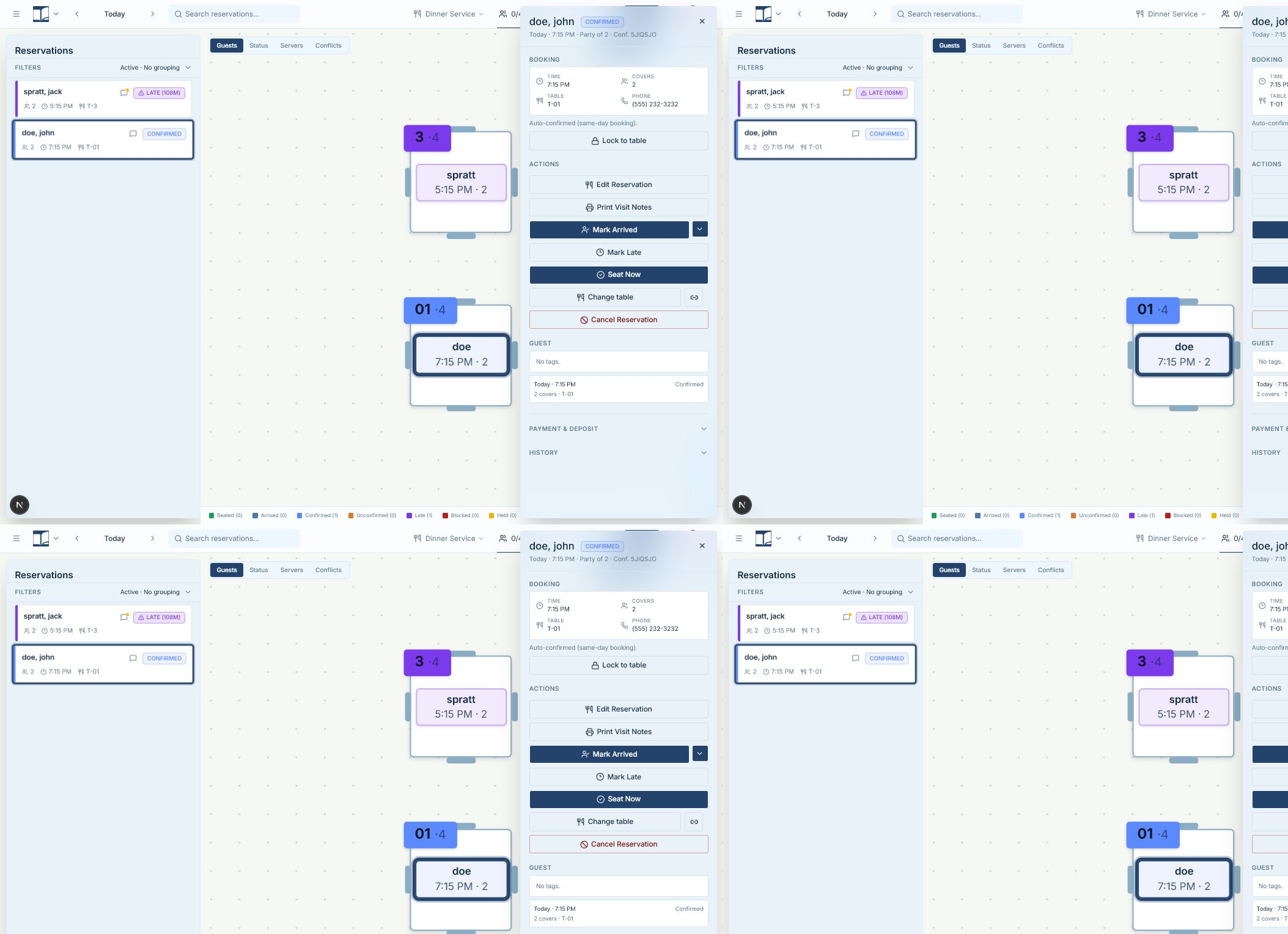
- 1On a computer, click the booking in the list (or its card on the floor or Reservation Book). The drawer opens on the right.
- 2On a phone or tablet, tap the booking. It opens in place; tap again to close.
Filter the reservation list
Show only some bookings, for example big parties or one time slot.
- 1Click Filters above the list.
- 2Choose under Time, Status, Table, Party (1-2, 3-4, 5+ covers) and, if you run events, Events.Status is Active by default, which hides Completed, No-show and Cancelled. Choose All statuses to see everything.
- 3Click anywhere outside to close the filters.
Sort or group the reservation list
Order the list by name, table or size, or group it by status or time.
- 1Click Filters above the list.
- 2Click Sort and pick Time, Status, Name, Party, Table or Booked. Click the small arrow beside it to flip the order.
- 3Under Group, pick By status, By table, By party, By time slot or No grouping.
- Sort and grouping are remembered on this device.
See who changed a reservation (history)
Check who moved, rescheduled or cancelled a booking.
- 1Open the booking.
- 2Scroll down and click Reservation history.
Up to 20 changes, such as Rescheduled - 6:30 PM > 7:30 PM, with who did it and when (time only).
- Booking History below it lists the guest's last 12 bookings.
See whether a booking was made online or by staff
Check where a reservation came from.
- 1Open the booking.
- 2Scroll down and click Reservation history.
- 3Look at the Created line at the bottom: it says who made it.
Booking Widget means the guest booked online. A staff name (or Host Stand) means staff entered it. Hostbook automation means it came from the online waitlist.
Check whether a guest confirmed
See if the guest confirmed by text, or if staff did.
- 1Open the booking and look under the details in the Booking section.
You'll see a line such as Confirmed by guest via SMS link., Awaiting guest confirmation. or SMS delivery failed with Retry message.
Change a booking
Change a reservation's time or party size
The guest calls to come later, or bring more people.
- 1Open the booking.
- 2Click the pencil beside Time (Change time) or Covers (Change covers) and set the new value.
- 3On a computer, click Save changes at the bottom of the drawer. On a phone or tablet it saves when the box closes.
- If the new time overlaps another party, Hostbook asks Change the time anyway? (Change anyway needs a manager).
- If a bigger party now needs a card on file, Hostbook sends you to the Edit form to finish.
- On the Reservation Book you can also drag the booking sideways to a new time.
Change a reservation's date
Move a booking to another day.
- 1Open the booking.
- 2Click the calendar-edit icon (Edit Reservation).
- 3Change Date (and Service period or Time if needed).
- 4Click Save.
- Seated parties can't change date.
Edit everything on a reservation
Change the guest's name, contact details, notes or any other field.
- 1Open the booking.
- 2Click the calendar-edit icon at the top of the drawer (Edit Reservation). On a phone, it's the calendar-edit button in the open booking.
- 3Change any field.
- 4Click Save.
- Only active bookings can be edited. For a seated party, date and time are locked; use Move guest to change tables.
- Editing needs a connection.
Move a reservation to another table
Give a booking a different table, before or after it's seated.
- 1Open the booking.
- 2Click Move guest (or Assign a table if it has none yet).
- 3On the floorplan, click the new table (or several tables).
- 4Click Done.
- Or drag the booking from the list onto a table (on a touch screen, long-press it first).
- If another party is on that table, choose Swap tables, Stack anyway or another option in Table conflict.
- Move guest starts with no tables picked; click the current table too if they should keep it.
If this doesn't work: If Move guest is greyed out, the guest is locked to their table. Click the padlock at the top of the drawer to unlock.
Give an unassigned booking a table
An amber card with a warning icon means it has no table yet.
- 1Click Assign Table on the card (or open it and click Assign a table).
- 2Click the table(s) on the floorplan, then Done.
Lock a guest to their table
Stop anyone (or AI Host) moving a party who was promised a particular table.
- 1Open the booking.
- 2Click the padlock icon at the top of the drawer (Lock to table).
A padlock shows on the card. Moving, linking and dragging are blocked until you click the open padlock (Unlock to move this guest).
Make a booking longer or shorter (dining time)
Give a party more time, or shorten it to fit the next booking.
- 1Open the booking.
- 2Click the pencil beside Dining time (Change dining time).
- 3Use the stepper (15-minute steps). It shows the new end time, for example 2h 15m · until 9:15 PM.
- 4Close the box to save (on a computer, then Save changes).
- After a change, Hostbook may offer to save that length as the guest's usual time. Click Save or Dismiss.
- On the Reservation Book you can also drag the right edge of a booking.
Turn a reservation into a walk-in (or back)
Mark a booking as a walk-in, for example when it was entered as a booking by mistake.
- 1Open the booking and click Edit Reservation.
- 2Switch on Walk-in at the top.
- 3Click Save.
Arrivals, seating and status
Mark a party as arrived
The guest is here but not seated yet, or only part of the party has arrived.
- 1Open the booking.
- 2Click the small arrow beside Partially seated (Arrival status options).
- 3Choose Arrived, Partially arrived, At the front or At the bar. (Click Partially seated itself if some of them are already at the table.)
The badge changes, for example to AT THE BAR, and Undo shows for 10 seconds.
- To reverse it, open the booking and click Unarrive.
Seat a party with a reservation
The guest is here and their table is ready.
- 1Click the green chair icon on the booking card (Seat), or open the booking and click Seat Now.
- 2If the booking has no table, click the table(s) on the floorplan and click Done.
The party shows as SEATED with a timer, and Undo shows for 10 seconds.
- The Seat icon shows within 30 minutes of the booking time on today's board.
- If the table is still occupied, choose Finish current table and seat guest, Seat anyway (share…) or Select another table.
If this doesn't work: Seating only works on today's date in the live service. If buttons are grey, check the header shows today and the current service, and look for a Service closed banner.
Unseat a party
Seated the wrong party, or they went back to the bar.
- 1Open the seated booking.
- 2Click Unseat.
The party goes back to waiting and keeps its table.
Confirm a reservation by hand
The guest confirmed by phone instead of the text link.
- 1Open the booking.
- 2Click Confirm.
- Only for Unconfirmed bookings, when your venue uses the Confirmed status.
Mark a party late
Flag a party that hasn't turned up yet.
- 1Open the booking.
- 2Click Mark Late.
- Today only. Hostbook also marks a party Late by itself once it's more than 10 minutes past their time.
Finish a party (mark completed)
The party has left and the table is free.
- 1Click the check icon on the seated booking's card (Finish table for…), or open the booking and click Mark Completed.
The booking is Completed and the table is free. Undo shows for 10 seconds.
Reopen a completed reservation
Finished a party by mistake.
- 1Click Undo straight away, or open the completed booking and click Restore.
- Restore works until the service period ends, if the table is still free.
Undo the last status change
Clicked the wrong button.
- 1Click Undo in the bar at the bottom of the screen within 10 seconds.
- Undo covers status changes, seating and unseating only. Time, party size, notes and table changes have to be changed back by hand.
Cancel, no-show and remove
Cancel a reservation
The guest called to cancel.
- 1Open the booking.
- 2Click Cancel Reservation (red) at the bottom.
- 3Approve if asked.
The booking is marked Cancelled and leaves the active list. Undo shows for 10 seconds.
- For a late party, you can click the red icon on its card (Cancel or mark no-show) and choose Cancellation or No-show.
- Any cancellation fee follows your venue's payment policy.
- To see cancelled bookings, set the list's Status filter to Cancelled or All statuses.
Mark a no-show
The guest never arrived.
- 1Open the late booking.
- 2Click No-Show at the bottom (or use the red icon on the card and choose No-show).
- The button appears once the party is Late. Walk-ins can't be no-shows.
- A no-show fee, if your venue charges one, goes for manager review.
Delete a reservation added by mistake
Remove a test or duplicate booking without counting it as a cancellation.
- 1Open the booking.
- 2Click Remove (grey) at the bottom.
- 3Click Remove in Remove this reservation?
- The guest isn't told. Use Cancel Reservation instead if deposits or fees apply. For a seated walk-in, use Remove Walk-in.
Bring back a cancelled or no-show reservation
Cancelled the wrong booking, or the no-show turned up.
- 1Set the list's Status filter to Cancelled (or No-show, or All statuses) and open the booking.
- 2Click Restore reservation. A manager or admin PIN is needed.
You'll see Reservation restored. It returns with its earlier status and table (if the table is still free).
- If a cancellation notice already went out, contact the guest yourself. A refunded deposit stays refunded.
Messages, payments and printing
Text or email a guest about their booking
Send a confirmation, a running-late note, or a private message.
- 1Click the speech-bubble icon on the booking card (Message…).
- 2Under Message, choose Confirm reservation (or Resend confirmation), Late arrival, Table ready or Private message.
- 3Check the preview, or write your message for a private one.
- 4Click Send.
- Private messages go by email, never text.
- The message icon is hidden once a party is seated.
- An orange dot on the icon means you're waiting for a reply; green means they replied.
Resend a booking confirmation
The guest says they never got it.
- 1Click the speech-bubble icon on the booking card.
- 2Choose Resend confirmation.
- 3Click Send.
- Needs the guest's email. If the text failed, open the booking and click Retry message.
Ask for a card or deposit on a booking
Ask the guest to save a card, so you can charge a fee if they don't show or cancel late (Stripe venues).
- 1Open the booking and click Edit Reservation (or do this in New Reservation).
- 2Open Payment and tick Require a card for no-shows or Require a card (manager).Require a card (manager) lets you set Fee up to ($) and the cancellation window for this booking, and needs a manager. Add the Reason the guest will see.
- 3Click Save (or Create).
- 4In the box that opens, click Send payment request.
The booking stays Unconfirmed and shows Awaiting card or Awaiting deposit until the guest saves their card or pays; then their confirmation goes out.
- The guest isn't charged now. The card is only charged, after a manager reviews it, if they don't show or cancel late. Hostbook no longer takes up-front deposits; older deposit rules now save a card instead.
- The request box also opens on its own when your venue's policy covers that party size or date.
- A manager can choose Waive (manager) instead.
Check or change a booking's payment
See if a card was saved, resend the request, waive or refund a deposit.
- 1Open the booking.
- 2Click Payment & deposit to expand it.
- 3Use Resend request, Waive, Review fee or Refund deposit as needed.
- Fee reviews and refunds are for managers. Refunds can't be undone. See Payments for more.
Print a chit for a reservation
Print the visit notes (occasion, allergies, notes) for the kitchen or server.
- 1Open the booking.
- 2Click the printer icon at the top (Print Visit Notes).
- Bookings with notes that match your print settings also show a printer icon right on the card.
- For a promotional menu, click Print kitchen chit on the menu box.
- Printer setup is in Settings and setup.
Print tonight's reservation list
A paper copy of the book for the host stand or kitchen.
- 1On a computer, click ⋯ at the far right of the header, then Print reservations. On a phone or tablet, tap More › Print reservations.
- 2Under Layout, pick Summary, Post-Service, Server report, Special Menu prep or a saved template.
- 3Set Service and Date. Today means today's real date; to print the date you're viewing, choose Select a date.
- 4Click Print, then print or save as PDF from the browser.
- Post-Service and Server report only work for today and earlier.
- Ranges can be up to 31 days.
What things mean
- UNCONFIRMED / CONFIRMED
Booked; Confirmed means the guest (or staff) confirmed. Some venues show these in a neutral colour.
- LATE (12M)
More than 10 minutes past the booking time and not here. The number is minutes late.
- ARRIVED, PARTIALLY ARRIVED, AT THE FRONT, AT THE BAR
Here but not yet at the table.
- SEATED (45M)
At the table; the number is minutes since seating.
- COMPLETED, CANCELLED, NO-SHOW
Closed bookings. They're hidden from the default (Active) list.
- Amber card with a warning icon
The booking has no table yet.
What to do: Click Assign Table.
- Dashed border, Waiting to sync
Saved on this device while offline and not sent yet.
What to do: Stay online; click Retry if it says Couldn't sync.
- Silver ticket band
A promotional menu is attached; its state shows on the band.
- Booking origin icon
Phone icon: taken in-house. Globe: booked online. Walking person: walk-in. Clock: from the waitlist.
- Padlock on a card
Locked to its table. Unlock it in the booking before moving it.
- Service closed
The service period is closed, so seating, assigning tables and walk-ins are off.
Not available yet
Things staff ask for that Hostbook doesn't do yet, and what to do instead. Want one? Open Help › Support Chat and click Send a suggestion.
- Copy or rebook a past reservation
- There's no Book again button. Go to Guests, find the guest and click the calendar-plus icon (New reservation for…) to start a booking with their details filled in.
- Skip the confirmation message
- Hostbook always sends the confirmation (or a payment link instead). Continue without SMS on the approval prompt stops texts only.
- Pick a table on the New Reservation form
- The form has no table picker unless you started from a table. You pick tables on the floorplan straight after Create.
- Book a special event from the reservation form
- Event guests are added from Events, not the reservation form.
- Edit a reservation while offline
- Only new reservations can be saved offline. Edits wait until you're back online.
- Undo a time, table or party-size change
- Undo covers status changes, seating and unseating only. Change the value back by hand.