
Run a shift from the Service Dashboard
Read covers and pending counts, act on alerts, deal with payments needing attention, start a booking, pause online booking tonight, print the list and message everyone booked.
The Service Dashboard is the host-stand screen. On a computer it shows the reservation list on the left and the floorplan on the right. On a phone or tablet, switch between them with List and Floor in the bottom bar.
The header shows the date, service period, covers, pending guests, and icons that only appear when something needs you: alerts (triangle), payments (credit card), pending actions (tick) and messages.
Counts and reports are only right if the team marks parties arrived, seated, completed, cancelled or no-show as it happens.
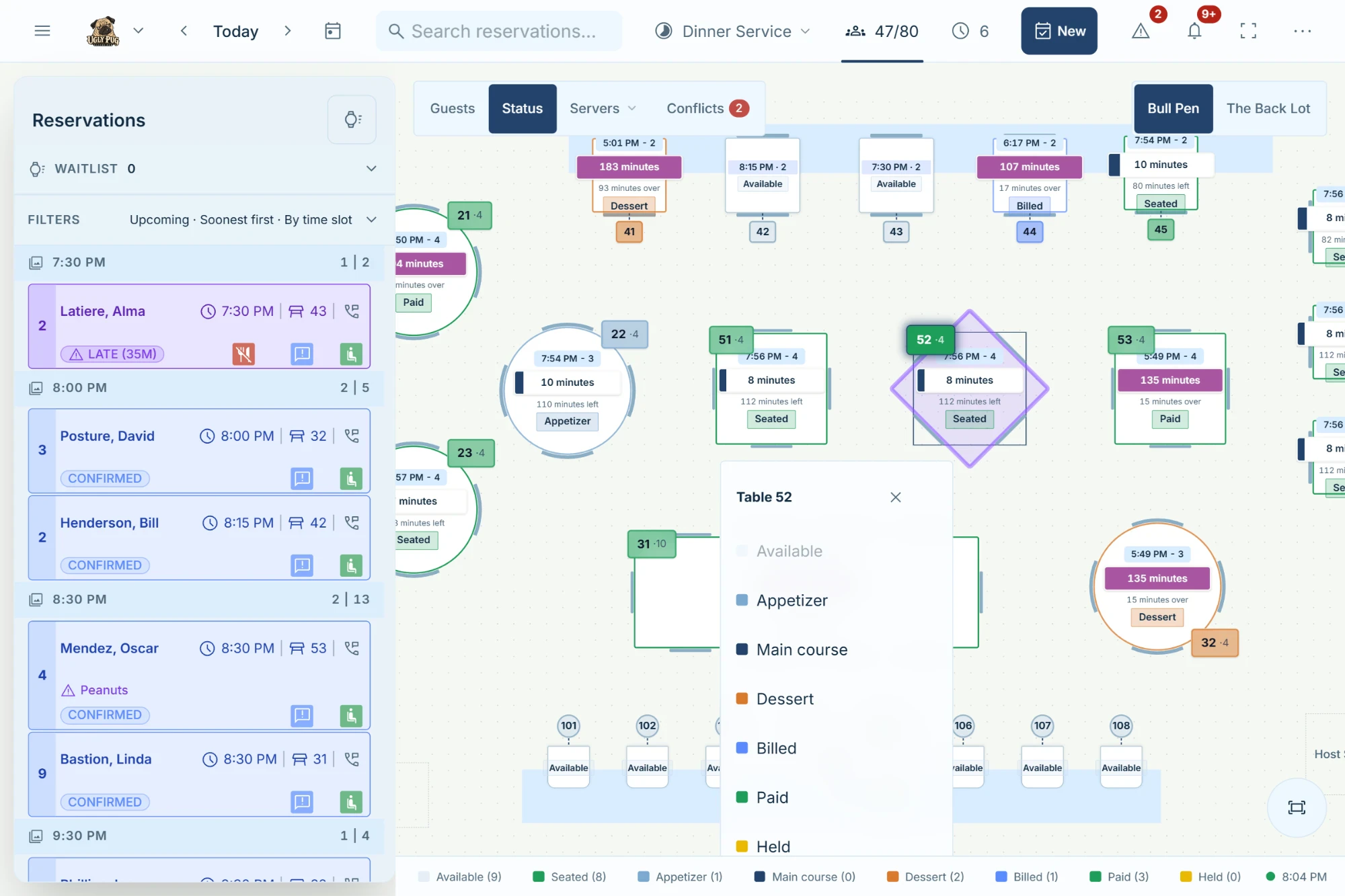
Read tonight's numbers
See how many covers are booked and seated
Check how busy the service is, block by block.
- 1Click the people icon in the header showing two numbers, for example 12/48 (seated/booked).
- 2Read the popover: covers seated and booked for each time block. The current block is tagged Now.
- 3Tap Period for this service only, or Day for the whole date.
- Booked totals leave out cancellations, no-shows and the waitlist.
- Period/Day changes the pending count too.
See who is still to arrive, seated, finished or a no-show
Quick service stats without opening Reports.
- 1Click the clock icon with a number in the header (N Pending on wide screens).
- 2Read the rows: Guests sat so far, Finished guests, Currently seated, Yet to arrive, Cancellations, No-shows, Walk-ins, Same-day bookings, Completed turns, Waitlist.
Switch the counts between this service and the whole day
Lunch and dinner on one date can be counted together or apart.
- 1Open the covers or pending popover in the header.
- 2Tap Period (this service) or Day (the whole date).
Both header numbers change together.
Alerts, payments and pending actions
Act on an alert (late, overdue, overlap)
The triangle icon with a red number appears when something needs a look.
- 1Click the triangle icon in the header (Alerts). On a phone or tablet you can also tap More › Alerts.
- 2Read the row: a clock means late (Past 7:30 PM), a person with a cross means overdue to leave (Due 9:00 PM), a triangle means two parties overlap on a table, and cutlery means menu choices are needed.
- 3Tap the row to open that reservation, then do what fits: mark arrived, seat, move the table, or mark a no-show.
- 4With AI Host (Premium), tap Resolve beside an overlap to see ready-made fixes, or Dismiss (phone and tablet) to hide it.
- The icon disappears when there are no alerts.
Deal with payments needing attention
The credit-card icon appears when a card request expired, a charge or refund failed, or no-show fees are waiting.
- 1Click the credit-card icon in the header (Payments needing attention).
- 2For each item choose Open (go to the booking), Resend request (expired card link), Review again (failed charge), Retry refund or Dismiss.
- 3If fees are waiting, click Review fees at the top and decide each one.
- Hosts can open and resend. Managers and admins can review fees, retry and dismiss.
Check bookings that haven't synced (Pending actions)
The tick icon appears when bookings saved while offline still need sending or checking.
- 1Click the tick icon in the header (Pending actions), or Review actions in the orange banner. On a phone, More › Pending actions.
- 2For each item use Retry, Edit, Put back in queue or Discard.
- See Work without internet for the full steps.
Tools for tonight
Start a new reservation from the dashboard
The quickest way to take a booking.
- 1Click New (calendar with a plus) in the header. On a phone or tablet, tap New in the middle of the bottom bar.
- 2Fill in the form and click Create. See Reservations › Take a reservation over the phone for every field.
Pause online booking for part of tonight
Stop guests booking a busy time online without changing your settings.
- 1On a computer click ⋯ (More dashboard actions) at the far right of the header; on a phone or tablet tap More in the bottom bar.
- 2Choose Service adjustments and enter a PIN if asked.
- 3Under Online reservations today, switch Online off for each time you want to pause.
Those times stop taking online bookings for the date shown in the header. Existing bookings stay, and staff can still book in-house.
- To cap covers instead, type a number in Max guests for the time and tap the tick.
- There's no single switch to pause the whole day; to close online booking for a full day, add a closed date set to Online booking only in Admin Settings.
Print tonight's reservation list
Print or save a PDF of the bookings.
- 1On a computer click ⋯ (More dashboard actions) at the far right of the header; on a phone or tablet tap More in the bottom bar.
- 2Choose Print reservations.
- 3Pick a Layout (Summary is the list), a Service and a Date, check the preview, and click Print.
- Today and Tomorrow mean the real dates, not the date in the header; use Select a date for another day.
Message everyone booked tonight
Tell every guest about a delay, closure or change.
- 1On a computer click ⋯ (More dashboard actions) at the far right of the header; on a phone or tablet tap More in the bottom bar.
- 2Choose Bulk message service (or Bulk messaging / Emergency Messaging).
- 3Write the message and send it. See Messages › Email everyone booked for tonight.
Show the list and floorplan side by side
See bookings and tables at once.
- 1On a computer they're always side by side on the Service Dashboard.
- 2On a phone or tablet, tap List or Floor in the bottom bar to switch between them.
- To make the list narrower, choose Compact under Device settings › Interface density.
What things mean
- 12/48 (people icon)
Covers seated / covers booked for this service (or the day).
- Pending (clock icon)
Parties not yet seated: unconfirmed, confirmed, late or arrived.
- Triangle icon
Alerts: late, overdue, overlapping or menu choices. Only shows when there are some.
- Credit-card icon
Payments needing attention.
- Tick icon
Pending actions: bookings saved on this device that haven't reached the book.
- Dot beside the clock
Green: connected. Amber: offline or loading. Grey: outside service hours. Red: something couldn't sync.
Not available yet
Things staff ask for that Hostbook doesn't do yet, and what to do instead. Want one? Open Help › Support Chat and click Send a suggestion.
- Resize or hide the list or the floorplan on a computer
- The split is fixed. Compact density makes the list narrower.
- Pause online booking for the whole of tonight in one click
- Pause each time in Service adjustments, or add a closed date set to Online booking only.