
Run special events and promotional menus
Build menus and packages once, mix them into in-house events, offsite events and prix fixe promotions, publish and invite members, add guests by phone and check them in.
Events (Premium) has three tabs at the top: In-house (a one-time party at the venue that holds tables), Offsite (catering somewhere else, no tables) and Menus (promotional menus such as a prix fixe attached to ordinary reservations).
Managers create and change events. Each new event or menu is built in a step-by-step wizard: press Done at the bottom of each step to move on.
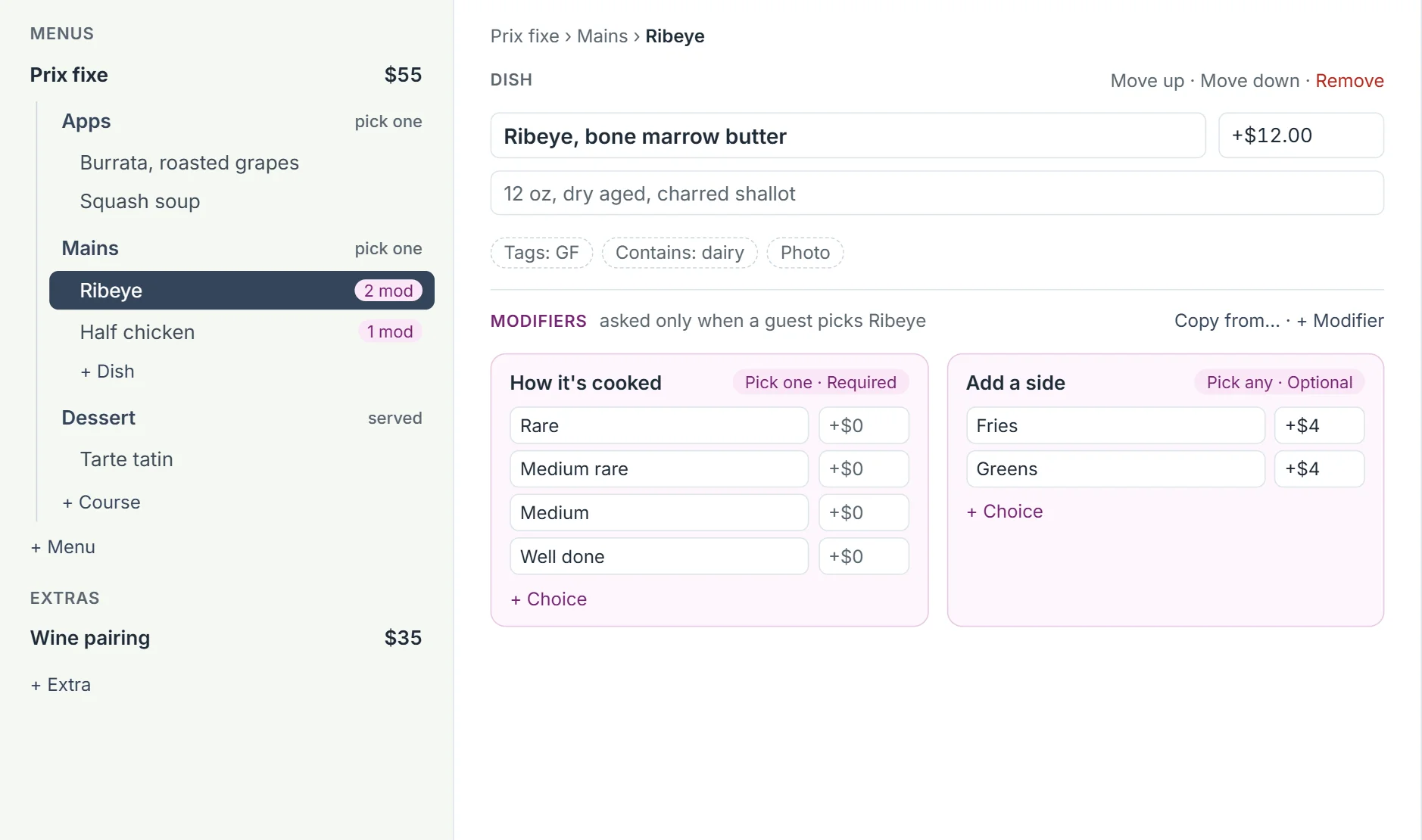
Think of each event or promotional menu as a campaign. Build your set menus and extras once in Menus & packages, then pick any of them in any campaign, mixing and matching as you like.
Create and publish an event
Create an in-house event
A one-time party at the venue, such as a wine dinner or New Year's Eve.
- 1Open Events: on a computer click the three-line button at the far left of the header, then Events; on a phone tap More › Events.
- 2Click New at the top, then In-house event.
- 3On Details, fill in the title, description, Event date, Start and End.
- 4Under Tables, tick the tables the event holds.Pick a room first, or use the select-all icon. Capacity fills in from the seats; you can type a different number.
- 5Choose Access: Members and public or Members only.
- 6Press Done and work through Packages, Payment (charged events only), Marketing and Invitation.
- 7On Review, click Save draft to keep it private, or Publish to go live.
The event is listed with a DRAFT or PUBLISHED badge, and its tables show a gold ticket on the floorplan (dashed while it's a draft).
- Steps unlock in order: finish one with Done before the next.
- Publish appears only once every step is marked Done.
- Turn on QR check-in on Details to put a QR code on guests' invitations.
Book a private room or buyout
Reserve a whole room, or the whole venue, for one group.
- 1For a party with one host and one bill: book one reservation across every table in the room (Floorplan › Book one party across several tables from a table's menu), or hold the room's tables for the evening.
- 2For a ticketed or set-menu evening: create an in-house event (Create an in-house event). Its tables are held for the event and guests book seats.
- 3To stop online guests booking that room, block its tables or add a closed date set to Online booking only for that service.
Create an offsite or catering event
Catering at another place. It holds no tables.
- 1Open Events: on a computer click the three-line button at the far left of the header, then Events; on a phone tap More › Events.
- 2Click New, then Offsite event.
- 3Fill in Location name, Address and, if you like, a Map link.
- 4Choose whether to Show location on the public event page, and set Capacity.
- 5Press Done through the steps, then Save draft or Publish.
- Offsite events don't appear on the floorplan or in tonight's covers.
Set an event's price and packages
Make it free, or charge admission and offer set menus or extras.
- 1On the Packages step, choose Free event or Charged event.
- 2For a charged event, switch on Admission price and set the Amount, and whether it's Per guest or Per booking.
- 3Under Add a saved menu or package, click + beside each menu or extra (for example a wine pairing) the event offers.
- 4Not built yet? Click Create a new menu or Create a new extra. It opens Menus & packages, and what you save there is added to the event.
- Menus are what each guest picks; extras are optional add-ons. Use the arrows to change the order guests see them in.
- Open What guests see on a picked menu to preview it.
Choose how guests pay for an event
Pay at the venue, prepay online, or keep a card on file.
- 1On the Payment step (charged events only), choose Pay at the venue or Prepaid online.
- 2For prepaid, choose Pay upfront or Card on file, charge after the event.
- 3Set the Cancellation cutoff and what you keep for late cancellations and no-shows.
- Prepaid needs Premium and a connected Stripe account. Charged events also need a tax choice in Admin Settings › Events › Tax before publishing.
Publish an event and invite members
Put the event live and email your mailing list.
- 1On the Invitation step, leave Email members when I publish on, and edit the subject and email. Use Send me a test to check it.
- 2On Review, check it says Ready to publish.
- 3Click Publish.
- 4Choose Email on publish or Email later (pick a time), confirm, and enter your PIN.
You'll see Event published. A public event gets a Booking link with a copy button.
- Publishing can't be undone, and a published event can't be unpublished.
- Members-only events have no public link; members book from their invitation.
Email members about an event again
Remind members who haven't replied.
- 1Open the published event and click More event actions (three dots) › Email members….
- 2Click Email members and choose Members who haven't responded or Everyone on the list.
- 3Click Send now or Schedule.
Change, postpone or cancel an event
Change an event
Fix details on a draft event.
- 1Open the event and click Edit.
- 2Click any finished step, change it, and press Done.
- 3Click Save draft or Publish.
- Once published, an event is view only except Marketing (click Save promotion). To change the date or time, use Postpone.
Postpone an event
Move a published event to another date or time.
- 1Open the event and click More event actions › Postpone.
- 2Set New date, Start time and End time.
- 3Type a Reason for guests.
- 4Click Postpone event and enter your PIN.
Guests are told the new date and asked to reconfirm.
Cancel an event
Call off an event and refund guests.
- 1Open the event and click More event actions › Cancel event….
- 2Type a Reason for guests.
- 3Click Cancel event and enter your PIN.
Guests are told, paid bookings are refunded automatically, and the tables are released.
- Events can't be deleted, only cancelled.
Print an event's orders or summary for the kitchen
Print what each guest ordered.
- 1Open the event and click More event actions › Print orders or Print summary.
- 2Print or save as PDF from the browser.
Event guests and check-in
Add a guest to an event by phone
Book seats for someone who calls.
- 1Open the event and click Add guest in the Guests section.
- 2Type their phone (or name or email) and pick them from the matches, or type First name and Last name.
- 3Set Seats and pick their packages.
- 4Add dietary needs, allergies or notes.
- 5Click Add to event.
- For members-only events, Search members only is on; turn it off to find anyone.
- For prepaid or card-on-file events, Hostbook emails the guest a secure card link. Staff never type card numbers.
- If the event is full, Hostbook asks whether to Add anyway.
Check in event guests
Mark guests as arrived on the night.
- 1Open the event (or the gold event card in tonight's reservation list).
- 2Click the check-in icon beside the guest (Check in…).
- 3If they haven't paid, choose Check in anyway; payment stays due.
You'll see Checked in… with Undo.
- Check-in opens on the event day.
Check in guests by scanning their QR code
Scan the QR on a guest's invitation.
- 1Open the event and click Scan QR (or Check in by QR on tonight's event card).
- 2Allow the camera.
- 3Hold the guest's QR code up to the camera.
- QR check-in must be turned on in the event's Details step.
Find an event guest
Look someone up on a busy guest list.
- 1Open the event.
- 2Type in Search name, email, or phone... above the guest list, or use Sort guests.
Cancel or no-show one event guest
A guest can't come, or never turned up.
- 1Click the guest's row to open their details.
- 2Click Cancel guest… (or Cancel & refund… for paid bookings), or No-show… after the event starts.
- 3Confirm.
- Refunds need a manager's PIN.
Take one seat off a paid event booking
One guest in a paid party can't come; the rest still are.
- 1Open the guest's details.
- 2Click Remove a seat and refund it…. With more than one dinner choice, pick whose seat goes.
- 3Check the amount and confirm with a manager's PIN.
- The refund is that seat's share: its admission, its package and the tax on them. The seat goes back on sale and the guest is emailed a refund receipt.
Record that an event guest paid at the door
Note a payment taken outside Hostbook, or waive it.
- 1Open the guest's details.
- 2Click Mark paid (or Waive payment) and confirm.
- Managers only. This records the payment; Hostbook doesn't take card payments at the venue.
Message an event guest
Send a guest a message or resend their confirmation.
- 1Click the message icon on the guest's row (Message…), or open their details and click Resend confirmation.
What things mean
- Gold ticket on a table
The table is held for an event. Dashed means the event is still a draft.
- DRAFT / PUBLISHED / CANCELLED
Drafts are private. Published events are live and mostly read only. Cancelled events are kept for records.
Not available yet
Things staff ask for that Hostbook doesn't do yet, and what to do instead. Want one? Open Help › Support Chat and click Send a suggestion.
- Delete or unpublish an event
- Events can only be cancelled. Drafts stay in the list; filter them by status.
- Change a published event's price, tables or capacity
- Only Marketing can change after publishing. Use Postpone for the date and time.
- Take a card payment at the door
- Hostbook only records a payment taken elsewhere (Mark paid).