
See how the night and the month went
Open reports, change the date range, read covers, turns and no-shows, check server load and event results, and print an end-of-night report.
Open Reports from the main menu (the three-line button at the far left of the header) or, on a phone, More › Reports. Overview shows the numbers; Transactions lists payments (managers).
Reports count what staff recorded. If parties weren't marked seated or completed, the numbers will be off.
Read your reports
See tonight's numbers
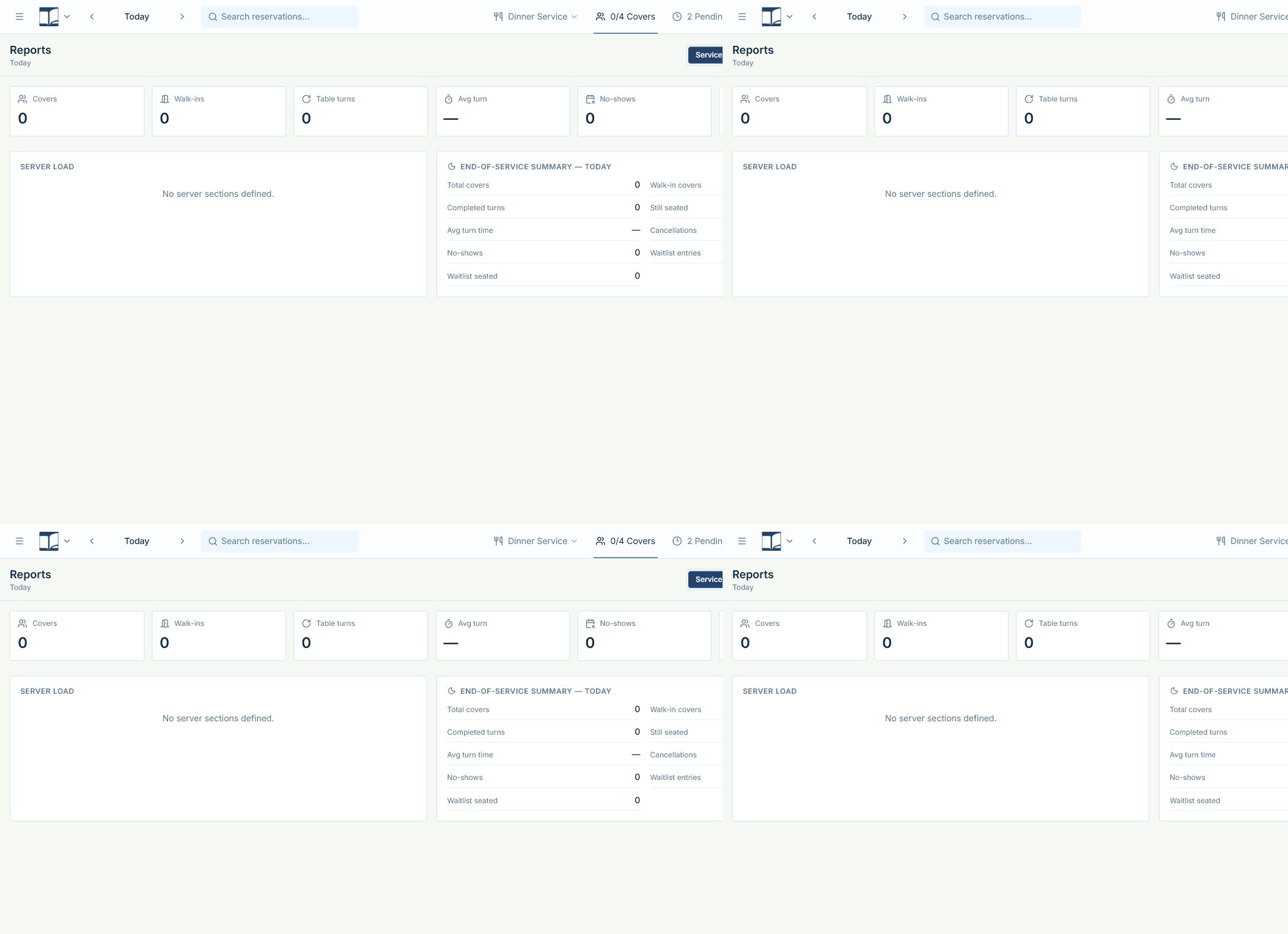
The end-of-service summary for one service.
- 1Open Reports.
- 2Choose Service.
End-of-service summary shows total covers, walk-in covers, completed turns, still seated, average turn time, cancellations, no-shows and waitlist numbers for the date and service in the header.
See numbers for a week, month or custom dates
Look at trends over time.
- 1Open Reports.
- 2Choose 7 days, 30 days or Custom (then pick the start and end dates).
The cards at the top (Covers, Walk-ins, Table turns, Avg turn, No-shows and more) and the chart cover that range, grouped by day, week or month.
- Numbers are counts. For a no-show rate, divide No-shows by total bookings yourself.
See a chart for one number
Plot covers, walk-ins, turns or no-shows over time.
- 1Click a card at the top, such as Covers or No-shows.
See how busy each server was
Compare covers and turns by server.
- 1Open Reports and click the Server load tab.
- Needs server sections set up on the floorplan.
Check a number that looks wrong
Covers or turns seem too low or too high.
- 1Make sure the range and service are what you think.
- 2On the Service Dashboard, set the list's Status filter to All statuses and look for parties left Seated, or never marked Completed, Cancelled or No-show.
- 3Fix those statuses, then check the report again.
- Covers count guests in seated or completed parties. Turns count completed parties. No-shows and cancellations aren't covers.
What things mean
- Covers
Guests in parties that were seated or completed. A party of four is four covers.
- Walk-ins
Covers from walk-in parties.
- Table turns
Completed reservations.
- Avg turn
Average minutes from seated to completed.
- No-show covers lost
Guests from no-show bookings: demand you lost, not guests served.
Not available yet
Things staff ask for that Hostbook doesn't do yet, and what to do instead. Want one? Open Help › Support Chat and click Send a suggestion.
- Show a no-show percentage
- Reports show no-show counts, not a rate. Compare No-shows with total bookings for the same range.
- Email a report automatically
- Print or save the report as a PDF (Print reservations › Post-Service) and email the file yourself.
- Compare this week with last week
- There's no comparison view. Run both ranges and compare them.
- Export reports to a spreadsheet
- Reports can be printed or saved as PDF, not exported to CSV. Guest and reservation lists can be downloaded from Admin Settings › Import › Open data tools › Download a backup.